Python
Setup
Installation
We’ll use the uv package manager with VS Code for this workshop. These are relatively common tools for Python that will set you up to work with Python locally.
If you already have a working Python installation with Jupyter Notebooks, you’re welcome to use that instead. Below we have alternative installation instructions for Miniforge and a list of available cloud options for working with Python.
VS Code
Download and install VS Code. Leave defaults and click through.
Automated uv install inside VS Code
- Open VS code and click File>New File>Jupyter Notebook.
- If you’re starting VS Code for the first time, it may ask you to sign into GitHub. If you connect your GitHub account, you’ll get some added GitHub functionality and an allotment of inline completions turned on by default. To disable AI features, go to File>Preferences>Settings, then search for “Chat: Disable AI Features”.
- In the top right of the new ipynb window, click Select Kernel.
- Click Install/Enable suggested extentions Python + Jupyter. Note that this make take a moment to install.
- You should get a pop up: “No Python found. Would you like to install uv and use it to install Python?”. Click Install uv and Python.
- Run the provided command in your terminal (bottom of the screen) to add uv to your PATH. Alternatively, restart VS Code.
- Continue to Project setup in uv below.
If you have issues with this process you can try the manual installation process below.
Manual uv install outside of VS Code
Follow the uv installation instructions for your operating system.
- For Mac:
- Open the Terminal and run:
curl -LsSf https://astral.sh/uv/install.sh | sh
or
wget -qO- https://astral.sh/uv/install.sh | sh
- Open the Terminal and run:
- For PC:
- Open Powershell and run:
powershell -ExecutionPolicy ByPass -c "irm https://astral.sh/uv/install.ps1 | iex"
- Open Powershell and run:
-
Restart your Terminal or Powershell and type
uv -hto see the help documentation (and ensure installation was successful). - We’ll also run a couple of commands in our Powershell or Terminal window to install necessary VS Code extensions:
code --install-extension ms-python.python
code --install-extension ms-toolsai.jupyter
Project setup in uv
Use Finder (Mac) or File Explorer (PC) to create a folder for the workshop. For example we could create a folder called “python_workshop” on the desktop.
Open VS Code and click File > Open Folder and navigate to the folder you created.
-
If you’re starting VS Code for the first time, it may ask you to sign into GitHub. If you connect your GitHub account, you’ll get some added GitHub functionality and an allotment of inline completions turned on by default. To disable AI features, go to File>Preferences>Settings, then search for “Chat: Disable AI Features”.
-
By default, VS Code opens new folders in restricted mode. Since we’ll be working in this folder, we’ll want to make it Trusted. To do this we can click the blue “Restricted Mode” button at the bottom left of the VS code window, then click Trust.
Click Terminal > New Terminal to open a terminal inside your VS Code session. We’ll use this terminal for future uv commands.
We can create a new uv project with the following command in the VS Code terminal:
uv init --bare
- The
--bareoption above tells uv to forgo creating other files that aren’t usually going to be useful in scientific compute settings.
This creates some files and folders in your project folder to get us started. However to really get going we’ll need to add some packages:
uv add jupyter ipykernel
Adding packages automatically installs Python, the packages we’ve requested, and any dependencies they have (there are always lots of dependencies!). You’ll see two major updates in your folder:
- The new
.venvfolder contains all of the packages and the python executable we’ll use for this project. - At the top level, our
pyproject.tomlfile is updated to reflect the newly required packages, and theuv.lockfile records what we’re actually using. (You generally won’t need to edit your .toml file and you should not modify your .lock file.) These files are the essential ingredients to reproducing your environment somewhere else!
Notes:
- If VS Code shows an error starting with “No Python found.”, feel free to click Install Python. This is about installing a default Python interpreter for VS Code. This is not the environment we’ll use today but VS Code can use uv to quickly install a default Python and prevent this error in the future.
Jupyter Notebook
Use File>New File>Jupyter Notebook to create a new Jupyter Notebook file. In the top right of your new ipynb window, you’ll see “Detecting Kernels” - this may successfully map to the Python kernel we’ve set up with uv, but if not, you can click “Select Kernel”, then choose Python Environments, and choose the “python-workshop” kernel with the path .venv\Scripts\python.exe (PC) or .venv/bin/python (Mac).
Troubleshooting:
If you have trouble finding the kernel, here are three things to check.
- Make sure that the folder is trusted - you should not see “Restricted Mode” in the bottom left of your VS code window.
- Try CTRL/CMD + SHIFT + P to open the command palette. Then search for “Developer: Reload Window” to refresh your session.
- If necessary, you can manually point to an interpreter with:
- CTRL/CMD + SHIFT + P to open the command palette
- Choose “Python: Select Interpreter”
- Chooose “Enter interpreter path”
- Paste
.venv\Scripts\python.exe(PC) or.venv/bin/python(Mac).
Adding and managing packages
There are three ways we’ll work with python packages. We can run the following snippets in three main locations:
- Back in your Terminal or Powershell window
- Inside VS Code: use Terminal>New Terminal to open a terminal inside our VS Code session.
- Inside our Jupyter Notebook: create a code block and start the code block with
!, for example! uv add pandas.
uv add
The simplest way to add a pacakge is to run:
uv add <package-name>
For example:
uv add pandas matplotlib
installs two packages and their required dependencies.
uv pip install
We can similarly use the pip package manager within uv with uv pip install.
For example:
uv pip install pandas matplotlib
However, this process does not update the “project files” - the .toml and .lock files, therefore can be less reproducible.
.toml (and .lock) files
Finally, if we’re picking up a project from someone else (or our own older work), we can use uv sync to recreate the same environment when a .toml file (and if available, .lock file) is present in the folder.
You can try this with our example toml. If you create folder, copy this file in and then run:
uv sync
This will install an environment with all of the packages that we’ll use or survey in the course of the workshop!
Alternative tools:
Miniforge
The miniforge installer gives you access to the conda package management system which includes python packages and other, often data-related, tools. We’ve used this in previous iterations of the workshop.
Miniforge Installation
If you don't want to try uv, you can also use miniforge to manage your python environment. See below.
#### If you're coming from an Anaconda installation
If you're moving from Anaconda to Miniforge, you'll need to do a little bit of preparation first.
1. Uninstall Anaconda
2. Check that any remaining .condarc files are deleted. These are often in the following folders:\
PC: C:/Users/username/.condarc\
Mac: /Users/username/.condarc\
(replace "username" with your username)
#### Downloading and Installing Miniforge
[Download the installer here.](https://conda-forge.org/download/).
**Mac Users: Pay particular attention to whether you need the Apple Silicon (M1, M2, etc.) or Intel version.**
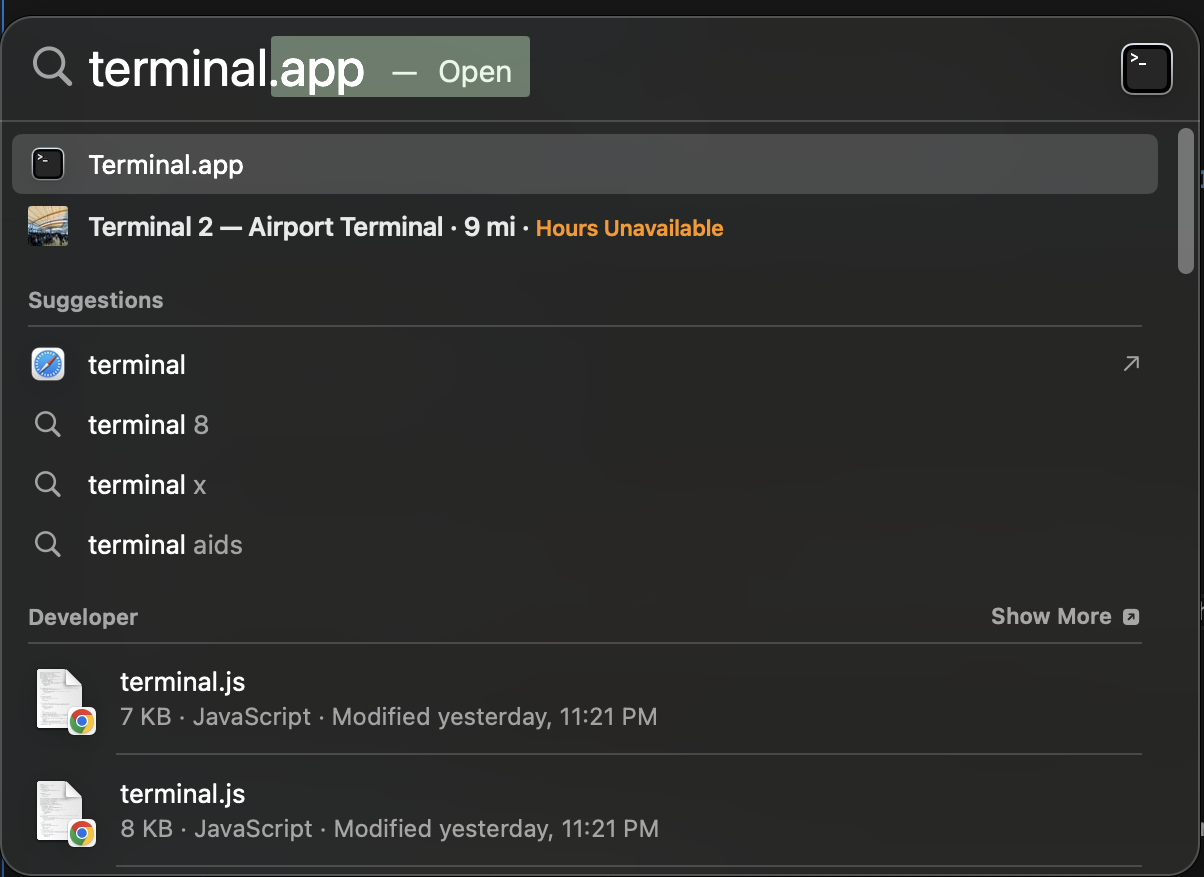
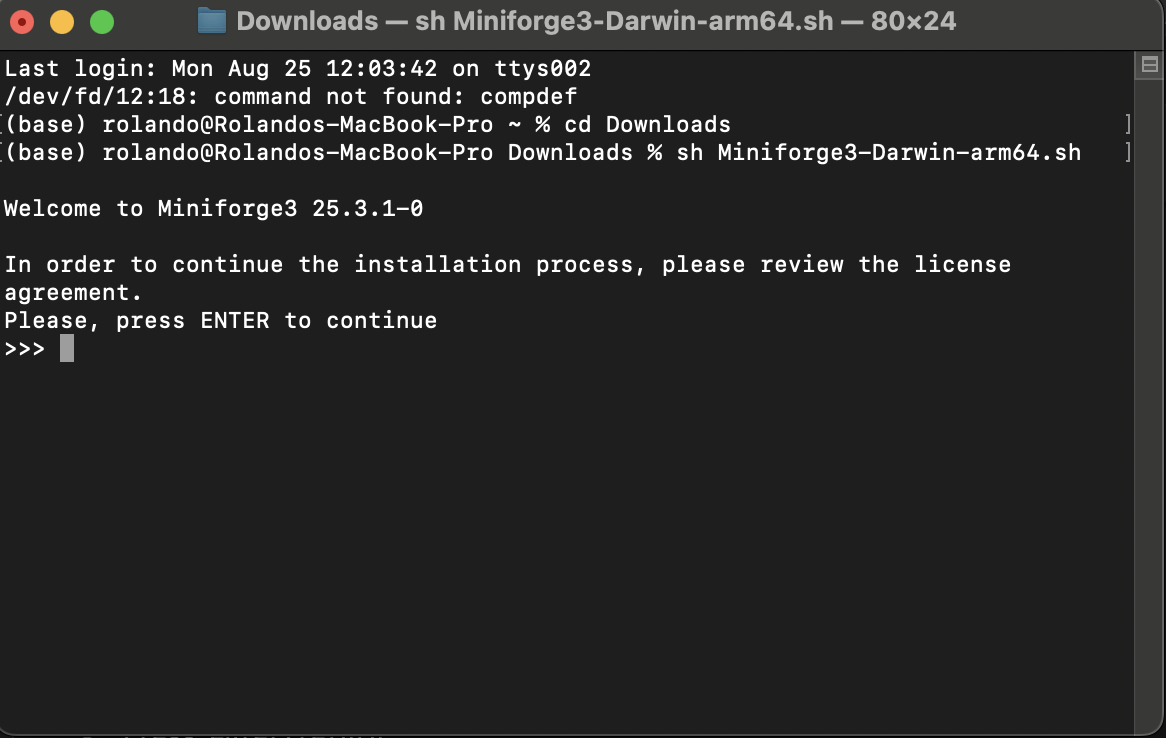
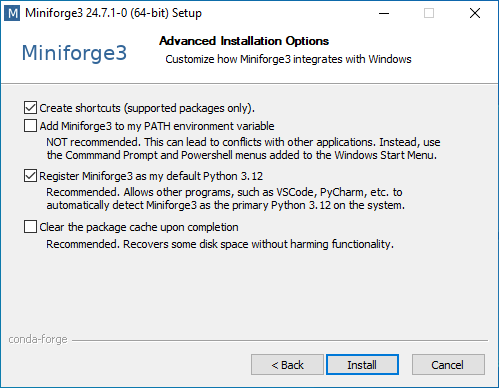
| Mac Installation | PC Installation |
|---|---|
|
1. PATH
2. Registering Python
|

pixi
Pixi uses uv for Python package management but also integrates the conda-forge channels from conda to provide non-Python tools. It’s similarly fast, but a bit more complicated than uv.
Pip and Venv
These are packaged with Python by default. They don’t have quite as many features as uv or conda, but they can work well for some users!
Local Install Alternatives
JupyterLite via Jupyter.org
If you would like to use Python for the duration of this workshop without downloading anything (or have problems downloading Miniforge), we recommend using JupyterLite. JupyterLite runs completely inside your browser using WebAssembly and Pyodide and provides an identical interface to the JupyterLab IDE we’ll be using for the workshop. You can drag and drop files to upload example data later on, and you can right click on any files to download them for later use.
Read more about JupyterLite
Note: If you run into issues with JupyterLite hanging or being unable to run code, try running it in a “Private” browser window, or try clearing your browser cache. This will reset the service, so make sure to save any files you need before clearing the cache!
Open OnDemand (UNC Research Computing)
If you have access to UNC’s Longleaf cluster, you can use Python with the Spyder IDE or Jupyter Lab in a web browser on Research Computing’s Open OnDemand service. This service runs on the Longleaf cluster so it’s a great option for complex or long-running Python scripts.
Cloud environments
Two of the most popular Cloud-based development environments are Google Colab and GitHub Codespaces. Both have Jupyter-style notebooks available that should allow you to follow along, and may have additional compute time available for student/academic accounts. You should be hesitant to use these services with any senstive data.